

While getting students off their devices is a key point of emphasis today, the fact remains that having good Wi-Fi in schools is essential. Students won’t be plugging their Chromebooks and tablets into Ethernet drops. They need Wi-Fi.
In this blog, we introduce wireless access point features that are beneficial when setting up a Wi-Fi network in a school. Because of the complexity of the topic, this is not a comprehensive guide to school Wi-Fi: it’s a 10,000-foot view.
Let’s get into it!

Wi-Fi Access Points for Educational Institutions
A wireless access point is a device that connects Wi-Fi clients to the IP network. A Wi-Fi client is anything that uses Wi-Fi: laptop, smartphone, tablet, camera, smart light, etc.
There are three questions that need to be asked about any Wi-Fi deployment:
- How many and what kinds of devices will be connecting to the network?
- How much bandwidth is needed?
- What challenges does the space present?
With schools, the most important devices will be the laptops and tablets the students and teachers use for work, plus smartphones. On top of these, there might be video conferencing and digital collaboration devices, smart sensors, security cameras, and a whole host of other devices.
The takeaway is that there will be regular times when many clients will need to access the network in a constrained space like a classroom, so network density is a key concern.
Allied to the type of device is the question of bandwidth: you don’t want a constrained network, particularly if you rely on HD video and other resource-intensive applications. Network bandwidth is another key concern.
Schools present significant challenges for Wi-Fi, because there are many obstacles to block Wi-Fi signals and because they’re relatively large buildings. Many schools incorporate outdoor spaces within their limits, which makes distance a challenge.
Let’s start by talking about dealing with obstacles and distance in more depth.

Dealing with Obstacles and Distance
Solid obstacles like walls are the biggest challenge for wireless access points. The reason is simple: Wi-Fi waves are dampened by solid objects. It’s the same thing as music behind a wall: it’s muffled.
For this reason, we recommend, if possible, using an Ethernet drop for each access point, rather than relying on a mesh network system in which access points connect with each other wirelessly.
In a recent blog, we covered tri-band Wi-Fi: 2.4 GHz, 5 GHz, and 6 GHz. The higher the number, the greater the bandwidth — but also the worse the obstacle penetration. This is where you need to balance two things:
- How much bandwidth is required?
- What is your budget?
Let’s say you have a class where students are editing videos and need to transmit the files over the network. You’ll want greater bandwidth, like the Grandstream Wi-Fi 7 access points offer. But this means, probably, having more access points per square foot than otherwise, so you need to budget for more APs. It’s a balance.
You also need to balance device compatibility and futureproofing. 6 GHz Wi-Fi is a recent standard, so many existing devices can’t access it yet: they need to support Wi-Fi 6E or newer. On the other hand, it’s reasonable to assume that most devices will be able to access it soon and will thus take advantage of it.
Distance is also a significant challenge for Wi-Fi networks, particularly if you want to enable Wi-Fi access for outdoor spaces like sports fields.
You need to have accurate measurements of the entire space you want to cover, taking into account obstacles like stands, fencing, and so on.
Thankfully, there are long-range, outdoor-ready Wi-Fi access points. Do they have the reach you require? Or do you need to look into wireless bridging?
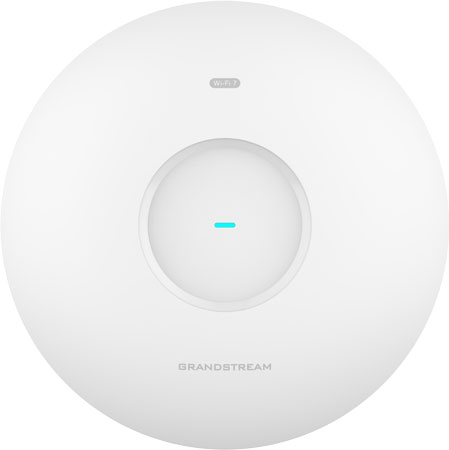
There are also indoor access points that help with both distance and obstacle penetration. For example, Grandstream GWN7670E features Xtra Range 2.0 technology, which extends the reach of the fast 5 GHz band — a double win.
Dealing with Network Density
In this context, network density refers to how many clients are trying to connect to the network at the same time in the same place.
Access points will specify how many devices they can connect at any given time in their datasheets. Remember, however, that these numbers are usually the maximum in the best-case scenario, so make sure to plan for some overhead.
The primary solution for network density is MU-MIMO (Multi-User Multiple Input Multiple Output). This term refers to a network technique that enables an access point (or router, base station, etc.) to link multiple devices to the network simultaneously, rather than in sequence, which was the previous method.
MU-MIMO gives you much better network connectivity.
If you have a place where there will be much greater usage like a lab for editing HD video, you should consider segmenting the network to provide a dedicated section of Wi-Fi for this place.
You can also optimize the network for specific applications with QoS (Quality of Service) features. Network optimization is particularly important for real-time applications like video calls.
Similar to dealing with network density is dealing with roaming. It’s quite likely that students, teachers, administrators, and staff will be walking around the school while using their smartphones. Having seamless roaming that’s implemented at the AP level (and not the client device level) can make the experience of using school Wi-Fi seamless.
Wi-Fi Network Security
Network security is essential for schools, where there will be a lot of potentially sensitive or private information being transmitted.
There are many Wi-Fi security methods and standards. While the access point is a key component of Wi-Fi security, it isn’t everything — we’re focusing on the security features that pertain to access points.
The most vulnerable time for your network is during installation. Grandstream combats this vulnerability is a number of ways, including each AP having a unique default password and secure boot, which means every layer of the AP must check with each other for security before it boots up.
Access points that support capture portals could be useful. Capture portals are, essentially, web pages that appear when someone tries to access a wireless network. You’ve likely encountered them at airports, hotels, and so on. The user signs in through the portal website, another step to make Wi-Fi more secure.
Then there’s also encryption. The gold standard encryption standard (for general use) right now is WPA3. Unfortunately, many devices still don’t support WPA3, so you will likely use WPA2 for now.
Ensuring you have a network management portal that allows you to monitor data traffic is essential. You’ll want to know both that the network is running smoothly and that no one is overusing it. You might also notice over time hotspots that need better coverage or dead zones whose resources could be shifted elsewhere, letting you adjust the placement of the access points.
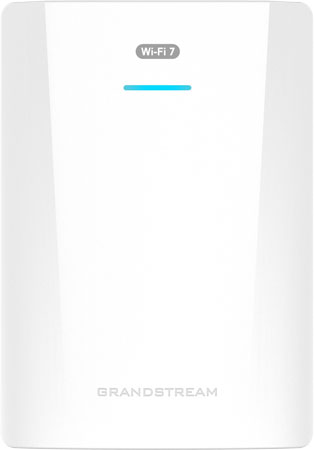
Finally, you might consider the physical security of the access point itself to protect against violence. Using an in-wall access point like Grandstream GWN7670WM protects the unit and cabling from tampering.