

When you buy a Bluetooth headset for work, there’ll be a little USB dongle in the box. It’ll look something like this:
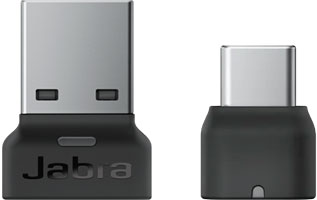
Jabra Link 380 Adapters
This dongle is used to connect the headset to your desktop or laptop computer. But why do you need to use a dongle at all? It’s so small, so easy to lose. It takes up a USB port. You don’t need one for your smartphone.
Bluetooth VoIP headsets that you use with your phone are simple. There are three options:
- If the phone natively supports Bluetooth and uses Bluetooth for headsets, you can connect directly.
- If the phone has a USB port that supports Bluetooth dongles, you need to plug in the dongle and then you can connect to the phone.
- If the phone does neither of those things, you can’t use Bluetooth with your VoIP phone.
Those are all your options.
The situation is less simple with Bluetooth headsets that you use with your computer.
In this blog, we clearly explain why Bluetooth headsets both do and do not work with your computer, why using a Bluetooth dongle is still the best option, and how Logitech’s new Native Bluetooth offers a potential new path forward.
Let’s get into it!
Why Doesn’t My Headset Work with My Computer Without a Dongle?
Let’s get the easy one out of the way: if your computer doesn’t have a Bluetooth radio, you need to use a dongle.
But almost all computers — Windows and macOS — now have built-in Bluetooth radios.
The truth is: often, you can connect your headset directly to your computer. And, often, it will work fine for certain features, including calls.
We’re going to examine those five words we just used: “work fine for certain features.”
We said, “work fine,” but for many people, even if the headset connects to their computer, the signal will not be stable. There might be call interruptions, the audio might stutter, the connection will not always work, and so on.
A bad connection is unacceptable with office headsets for work. You cannot suddenly drop out of a conversation with a potential customer. You must hear what a colleague is suggesting in a virtual meeting. Your background music must play normally.
Unfortunately, there’s a whole host of reasons as to why Bluetooth often doesn’t play nice with computers. This is not an exhaustive list.
- Bluetooth protocols. Bluetooth is a large, constantly evolving set of standards. While all versions are backwards compatible, if the headset supports a version that’s newer than the one the computer supports, you might not get the performance you expect. The computer might also assign the wrong Bluetooth profile to the headset.
- Soundcard. The computer might assign the headset to be only a communications device, so it can only be used for calls, strictly defined. You will lose access to call control, mute/unmute, and many other features you assume — justifiably — that you should be able to use.
- Interference from USB ports/devices. Some USB ports produce radio-frequency noise that can disrupt Bluetooth signals.
- Range. A computer’s Bluetooth radio typically has a much smaller range than a Bluetooth dongle. In some cases, the computer’s range might be less than 10 feet, so you must stay very close to the computer at all times or else the signal will degrade or even drop out.
- Multi-device connectivity. Bluetooth headsets can often connect to multiple devices simultaneously. There might be issues as the headset tries to connect to other devices as you’re using it, which means you might have to find tedious workarounds like unpairing the headset from your phone.
- Software, firmware, and drivers. There can be compatibility issues that derive from the complexities of ensuring interoperability with all the varieties of computers. Not using a dongle also prevents you from updating the headset’s firmware via the computer app, which is suboptimal.
Because there are so many potential sources of problems — that’s not a complete list! — it’s very hard to diagnose exactly why your headset isn’t working properly. And even if you do diagnose it, you might not be able to do anything about it.
Which is why using a dongle is so great: you know it will work if your computer meets the operating system and platform requirements. You know you’ll get all the features.
What Are the Advantages of Using a Dongle with a Computer?
Using a dongle is still your best solution. It makes connection ultra-simple.
We know: it’s one more little thing that can be lost and replacing it can cost money you’d rather not spend. It takes up a USB port that could be put to better use.
But the negatives are outweighed by the positives.
We haven’t forgotten. We also said that we were going to explain what we meant by “for certain features.”
If you connect the headset directly to a computer, you won’t have access to many features. This list is also not exhaustive:
- Call control. The vast majority of Bluetooth headsets have buttons on the earphones for play/pause, answer/end call, mute, volume up/down, and so on. When you connect without a dongle, these buttons will likely not work. You’ll have to do everything via the softphone app and settings on the computer. When you use a dongle, they’ll just work.
- Firmware upgrades. You’ll be able to upgrade the headset’s firmware via the computer app. For example, Jabra headsets use Jabra Direct.
- Active Noise Cancellation (ANC). Active Noise Cancellation is one of the most desired features in a headset. If you don’t use a dongle, you might not be able to adjust ANC settings or even use it at all.
- Professional features. Bluetooth office headsets support a wide range of features like sidetone, anti-startle, hearing protection, and so on. These features are managed in the headset app.
- Audio quality. Bluetooth dongles from professional headset manufacturers might also function as audio processors, improving sound quality significantly. Without the dongle, you don’t get the audio processing.
- Factory pairing. Headsets typically come with the headset paired to the dongle, making the experience plug-and-play, so you don’t have to worry about selecting the headset as an audio peripheral.
- Range. Bluetooth dongles have much greater range than computers. Dongles enable the full feature-sets that Bluetooth headsets can offer a given communication platform.
Are there any alternatives?
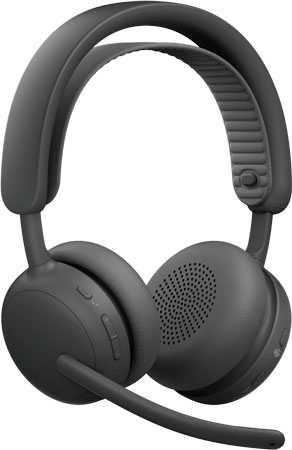
Logitech Zone Wireless 2 ES for Business
Logitech Native Bluetooth Ditches the Dongle
Logitech has recently released headsets that feature what they call Native Bluetooth. By this, they mean that the headset connects directly to a computer without needing a dongle.
You get full call control, can manage them in the computer app, and more.
Sounds great! And it is.
But.
As of the publication of this blog (Jan 2026), Logitech Native Bluetooth headsets are only compatible with Microsoft Teams and Google Meet. Native Bluetooth only works with Windows computers. There are also many other requirements and limitations that you should be aware of. It’s new — it needs time to grow.
For up-to-date compatibility information, see the Native Bluetooth Compatibility Information (external link) page on the Logitech support website.
Hopefully, solutions like Logitech’s Native Bluetooth will take off and provide a simple, feature-inclusive experience for office headsets.