

Large, interactive displays open up incredible opportunities in the classroom — from elementary classrooms all the way through graduate seminars.
We’re not talking personal tablets or Chromebooks here. We’re talking touch displays the size of TVs, ones that can be seen by everyone in class and used collaboratively.
They can be chalkboards to help students learn proper mathematical order. They can be whiteboards that let the teacher easily save the collaborative storytelling their class has accomplished. They have the potential to guide students through history with immersive tours of Mayan pyramids or Roman colosseums or Japanese temples; they could let students closely examine the structure of atoms or human anatomy.
The opportunities are endless.
But the displays need to run the apps.
Android is the most convenient app ecosystem for education within the touchscreen display context. Because it originated for smartphones, it’s a touch-first user interface — perfect for touchscreen displays. And it offers the most extensive library of education apps for interactive displays today.
Yealink recently released MeetingBoard C, a touchscreen display built specifically for the Google ecosystem.
While they position the display as a business communication and collaboration device, we believe — and many educational institutions we’ve worked with believe — that it’s a perfect tool for the classroom.
In this blog, we’re show how Yealink MeetingBoard C provides educational institutions with a simple, effective solution for using educational apps on a TV-sized interactive display.
Let’s get into it!
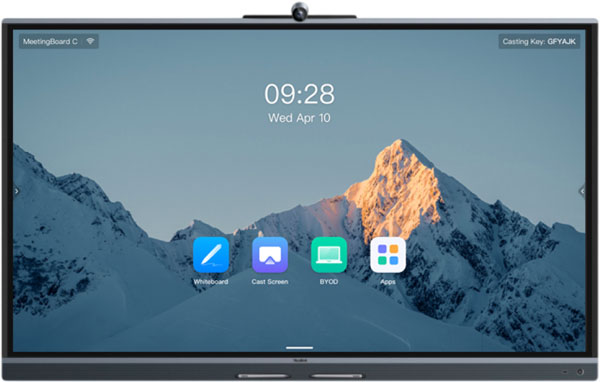
Yealink MeetingBoard C EDLA for the Google Ecosystem
What do you need in an educational touch display?
The display must be fit a given room size and class size. MeetingBoard C comes in 65-inch and 75-inch screen sizes (as of August 2026). The 65-inch fits small to medium rooms and the 75-inch medium to large rooms. These two sizes cover the educational spaces in which a touchscreen display would be effective.
The display must have a professional-grade touch interface; teachers and students should want to use the display, not feel obligated to use it. MeetingBoard C is designed for ultra-low latency; it’s been tested to have just a 21 millisecond input lag. A human eye blink takes roughly 100 to 400 milliseconds, so the display has the latency of one-fifth the time it takes you to blink, or less. In other words, interacting and writing on the display will feel instantaneous, as if you were writing on paper.
It features palm rejection, which lets you write more with a more natural wrist position. It supports 20-point touch and dual input, so two people can use the display at the same time. One person could write while the other person erases as the brainstorming session heats up.
Yealink includes two styluses with the display. These four-level styluses support pen-tip writing and pen-tail erasing, so the experience is very similar to using a regular pen — and even more convenient than using chalk or a dry-erase marker. And they attach magnetically to the display when not in use, so they won’t be lost.
But screen size and touch interface are the table stakes of any interactive display.
The display must, most of all, be able to run the apps and run them securely.
Yealink MeetingBoard C is intended for use with the Google Ecosystem. It is EDLA Certified. This is important. Let’s explain.
EDLA stands for Enterprise Devices Licensing Agreement. It’s a Google certification program. Before 2022, no large interactive displays were certified for Google Mobile Services; now they can be, if they’re Google EDLA Certified.
For touchscreen displays, EDLA certification guarantees three vital things:
- Device approval for Google Mobile Services, which means native integration with Google apps, including Chrome, YouTube, Docs, Sheets, Slides, Classroom, Assignments, Gemini, and more.
- Access to the Google Play Store to allow installation of approved third-party Android apps, including many, many educational apps.
- Device security via the Google Play Protect service and more.
So the fact that Yealink calls them the MeetingBoard C EDLA is rather important.
What kinds of apps can run on Yealink MeetingBoard C?
The answer is, well, a lot.
There are, for example, digital whiteboarding apps like Conceptboard that enable many valuable teaching moments, like mind mapping to teach the intelligent structuring of arguments or creative works. Many apps let you share pre-made content and edit it collaboratively.
Khan Academy offers a famously extensive and expert series of lessons that teach everything from 2 + 2 to [insert differential calculus equation here]. (It’s been a while.)
Gamifying learning by using apps like Kahoot! is a powerful method for motivating students to learn.
There are apps that let students collaboratively create models for 3D printing and work with CAD, teaching valuable lessons on industrial design, architecture, and more. Many apps teach computer programming using Python, and these will undoubtedly teach students about AI and how to productively engage with LLMs. These apps, and others like them, extend the usefulness of the touch display to college and even graduate studies.
If your institution uses the Microsoft ecosystem, you don’t need to worry about the display being an Android device: Microsoft makes a great many Android apps, including the well-known ones like Word and Excel, plus lesser known but valuable ones that are excellent for education like Microsoft Whiteboard.
Google themselves offer a wide range of apps through the Google Workspace for Education suite, as well as their ever-growing Gemini for Education generative AI application.
MeetingBoard C lets you use Chrome, which means you can use web apps, not just native Android apps.
The simple ability to easily zoom in on and highlight and comment on details in a picture — say, Van Gogh’s Starry Night — is a vast improvement over what traditional educational tools can offer.
This is nothing to do with it being a touchscreen display, but MeetingBoard C has an integrated camera, microphone, and speaker system, which means you could, for example, use it to set up a video call with an expert like a museum curator or local CEO.
And the display also functions as a 4K Ultra HD TV for showing students video or content that isn’t interactive: it’s a business-grade TV.
On top of what can be used in the classroom with students, touchscreen displays like MeetingBoard C can also empower educators by making curriculum development faster, improving their slideshows, and more.
To finish, let’s touch on one final thing that an interactive display for education must be: simple.
Touch-based interfaces are, for many people, simpler to use. As an operating system, Android is generally easier to use than Windows. Because it is Google EDLA Certified, MeetingBoard C has the Android process streamlined with a full range of security features to protect your institution.
Yealink has streamlined the process of setting up the display itself: you can be up and running with MeetingBoard C in 15 minutes. Google apps like Chrome, Drive, and YouTube are already installed, as is Google Play for downloading your educational apps. You can share HD content via an HDMI cable or wirelessly using AirPlay or Miracast, and it can connect to the network via Wi-Fi.
Yealink MeetingBoard C is a simple device that can have lifelong consequences: improving education for everyone.