

This post is the third part of a three-part series on recording and live streaming surveillance video from IP cameras. It covers live streaming. Here are the first two parts:

Storing surveillance video in camera on an SD card is a great idea and so is storing it in a centralized location using an NVR, hard drive or NAS solution, or cloud storage.
But recording is only half of the equation. The other half is live streaming.
In this blog, we discuss three common scenarios in which you’d want to live stream surveillance video:
Remember that support for everything discussed here depends on your equipment and your IP camera system. Not every feature will be supported by every camera or every system.
Let’s get into it!
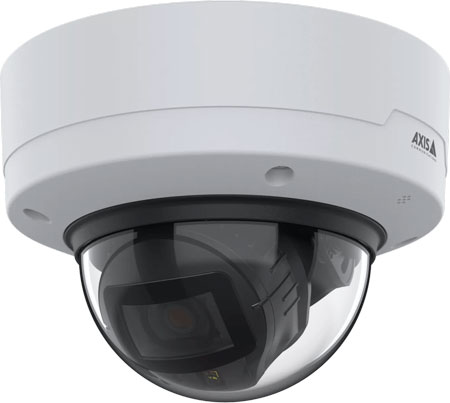
Axis P3285-LV with Audio Analytics
Live Streaming Surveillance Video in a Set Location
The classic scenario for viewing live security video is by security staff on a private monitor or bank of monitors.
Old-school CCTV systems were hardwired to run video to a specific location.
IP camera systems, in contrast, are network-connected, so you can direct video feeds to anywhere via network transmission. The cameras and the computers running the video management software (VMS) just need to be on the same, secure network.
It’s like the old-school audio conferencing systems that required hardwired mics and speakers. Now, with Dante audio and other Pro AV solutions, everything runs over network technologies, making them almost infinitely more scalable and flexible.
This greatly expands the reach of your camera system. It expands it to literally anywhere on Earth, provided you use secure network technologies like VLANs.
You use the same VMS for streaming live video as you do for managing video storage.
When looking for an optimal VMS solution for your business, there are certain features that you should highlight. This isn’t an exhaustive list, but rather helpful hints:
- User interface
- Live view configuration
- Multiple monitor support
- Camera controls
- Audio
- Screenshot and instant replay
- PTZ (pan, tilt, zoom)
- Narrow space compensation
The first thing to look for is simply the quality of the user interface. Live viewing is a dynamic process: staff need to be able to use the program without issue.
The most important UI feature is the configuration of the live view boxes on the display. Can you switch between feeds easily? Can you label them clearly? Do you get real-time analytics to improve security?
And a big one: Can you view live feeds on multiple monitors? This question is particularly important for larger installations. The more boxes on a display, the smaller they will be. It’s tough to have more than 4 live view boxes on one monitor. And even if you just have four cameras, the secondary display might be useful for analytics, for switching between feeds, for selecting features, and more.
The VMS will let you control the cameras. Note that support for camera control depends on what the camera is capable of.
Some cameras support audio, which can add a second layer of security to your video. We recently covered all the ways audio can improve an IP camera system. Your staff will probably not want to have a live audio feed running all the time but having the option to turn it on and off is highly useful.
There are minor features that are useful, too. Being able to take a high-quality screenshot from a given feed is a great feature to look for, as is “instant replay,” playing back a short section of video in real-time. Did you actually see that happen? Instant replay helps streamline your analysis.
The ability to adjust cameras is a must. This could mean turning on night mode (if the feature doesn’t turn on automatically), zooming in and out, focusing on specific areas of the video feed, adjusting video settings like brightness or sharpness, and more.
Let’s talk about zoom, because your system should let you zoom in and out.
There are two types of zoom: optical and digital. Optical zoom is mechanical and provides lossless zooming; digital zooming is lossy, but it’s better than nothing. If your camera supports it, you should be able to zoom in using either optical or digital zoom while live viewing the video feed.
PTZ cameras let you remotely pan, tilt, and zoom the camera. They use optical zoom. They’re expensive but incredibly useful for surveillance of open spaces: one camera for many angles.
Many cameras have varifocal lenses, which lets you adjust the focal length of the camera to zoom in or out. Be aware that, for many of these cameras, you can only zoom in or out when installing the camera or later manually. They do not support remote optical zooming. With cameras like these, you’ll be using digital zoom.
Also be aware that many cameras list pan, tilt, and rotation (or yaw) in their specs under something like “Angle Adjustment.” This does not mean the camera is a PTZ camera; it refers to how you can adjust the camera when installing it. You won’t be able to adjust it remotely, as you would with a PTZ camera.
Certain companies like Axis compensate for hallways, aisles, and other narrow spaces by orienting the video in portrait mode rather than landscape mode. In other words, the video is flipped 90° to be vertically oriented, so you get a better picture for the space without wasting most of the video on walls.
Features like these are excellent, but feature support may be impacted by several factors that you should be aware of.
In particular, you must be aware of total bandwidth usage. The network, computer, or VMS platform might only be able to handle so much data traffic.
Video resolution and/or frame rate might be impacted as the system compensates for the additional bandwidth usage. It might, for example, send you 720p HD video feeds from your 8 cameras when you want 1080p Full HD video feeds, or it might send you video at 15 fps when you want 60 fps.
More efficient video compression like the AV1 or H.265 (HEVC) video codecs can reduce bandwidth load. There are also a host of other solutions, like Axis Zipstream, which retains full detail only on the important sections of the video feed, or using motion detectors to reduce bandwidth usage.
Another thing to be aware of in terms of feature support is that support might change based on platform. For example, the system might support features on a Windows PC that are not supported on the platform’s Android app.
Which brings us to streaming video on a mobile device.
Live Streaming Surveillance Video on Mobile Devices
Because IP camera systems are network-connected, it’s now possible to securely view surveillance video in one location from anywhere in the world.
This includes using a mobile device like a smartphone. Many VMS platforms offer mobile app integration, both for Android and iOS devices.
Besides the obvious advantage of access from anywhere, there are a few other advantages to going with a VMS that supports an app.
A major use-case for mobile surveillance video apps is for quick response to triggered events. For example, support staff could be walking the hallways with company smartphones on them. When a camera picks up someone trying to enter a window, it could send an automatic alert to the smartphones. Staff can immediately see the video feed, be told where the camera is located, and respond in double time.
It also helps in the other direction: to reduce false alarms. For example, a warehouse worker could accidentally knock over a stack of boxes. This might be bad for inventory but isn’t something security needs to get involved with. A quick alert to their phone, a quick scan of the video feed, and security knows the situation is under control.
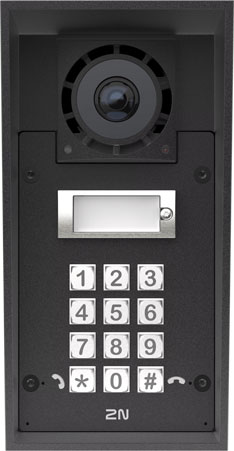
Some IP camera systems integrate with network-connected intercom or door access systems like the popular 2N IP intercoms. In this case, the support staff can view video feed from the intercom and securely let people into the building while on their rounds.
The mobile apps let managers and executives monitor the premises while on business trips or provide a simpler solution for after-hours video security.
With mobile apps, you should know that you will probably not get the full feature-set that is available on the desktop app.
There will also likely be limitations like video quality could be capped below the full resolution and frame rate the desktop system is capable of.
Public View Surveillance Video
The final scenario we’re going to discuss in this blog is streaming a live video feed to a public monitor.
Public view monitors have been shown to be a useful tool in preventing theft and vandalism. When you enter a store, you see yourself on a display. You know you’re being watched.
The interesting thing is that recording this video feed isn’t really the important part. The important part is making sure people see themselves.
Public view surveillance feeds are often different from other types of IP camera video feeds, because the camera is usually connected directly to a monitor via an HDMI cable or similar. Some public view monitors have integrated cameras.
If you want to setup a public view monitor, make sure the camera itself supports direct connection to a display.
We hope this 3-part series helps you establish a professional video security system by providing an in-depth review of storage and streaming options for IP cameras.