

What is the best Microsoft Teams video conferencing system for your business?
Starting as a workplace chat application, Microsoft Teams has grown into a suite of communications solutions: chat, video calls, and phone calls. It also integrates with OneDrive, Outlook, and other Microsoft 365 apps to integrate document sharing, calendar, and many other functions.
The video conferencing portion of Teams is called Microsoft Teams Rooms. (We’re going to shorten Microsoft Teams Rooms to MTR on occasion in this blog.)
Microsoft works closely with trusted manufacturers to produce Microsoft Teams Rooms Certified video conferencing devices.
Unfortunately, it’s a bit more complicated than that — isn’t that always the case with tech?
Microsoft Teams video conferencing devices are certified according to the operating system they use: Windows or Android. (There is also a whole range of other devices like headsets certified as Microsoft Teams peripherals.)
While both Windows and Android devices largely support the same features and offer a similar user experience, there are differences.
In this blog, we explain when you’d want to choose Teams Rooms on Windows devices vs the Teams Rooms on Android devices. We cover a wide range of topics:
Let’s get into it!
The Benefits of Microsoft Teams Rooms on Windows Devices
Microsoft Teams Certified means that a device has gone through a process that proves it meets specific criteria for platform integration, performance, security, feature support, and more.
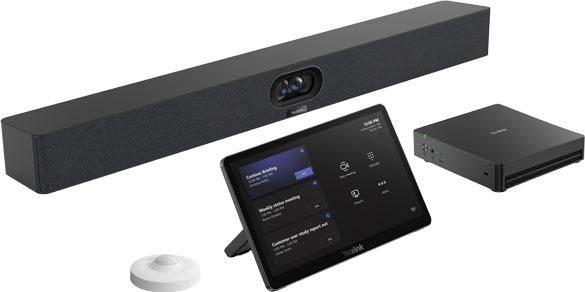
The general difference between MTR on Windows devices and MTR on Android devices is that Windows Certified devices are mostly PCs or PC-based systems, while Android Certified devices are mostly video bars and related products like interactive whiteboards.
Let’s get into more specifics.
Lifecycle
The lifecycle of MTR on Windows devices, in general, is longer than MTR on Android devices.
Microsoft Teams Rooms on Android devices are certified for specific versions of Android. For example, a video bar might be certified for Android 14; the manufacturer can have it be recertified, but it must go through the certification process again. This means that Android devices tend to be certified for shorter periods of time than Windows devices. The version of Android that the manufacturers use in their devices also must be certified by Microsoft, since the Android operating system can be extensively modified (as compared with iOS, which is entirely controlled by Apple).
In contrast, Microsoft Teams Rooms on Windows devices don’t have a listed end-date for certification. However, they must be able to run the latest versions of Windows and the Teams Rooms app. This means that certain devices that cannot upgrade from Windows 10 to Windows 11 will no longer be supported.
That said, the general point holds true: MTR on Windows devices tend to have a longer lifecycle than MTR on Android devices.
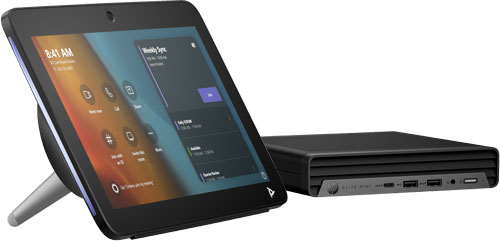
Poly Studio Base Kit G9 Plus for Microsoft Teams
Features
While most Microsoft Teams Rooms features are shared between the Windows and Android versions, there are certain ones supported on one and not the other.
If your business wants to use a specific Teams Rooms video conferencing feature, make sure it’s supported on the device. (Note that not every feature is supported by every device.)
Everything we mention here is current as of the publication of this blog (February 6, 2026). The situation might have changed after publication. We strongly suggest you consult the Microsoft Teams Learn website for the most up-to-date information (external link): Teams Device feature comparison.
Here are some notable features that can be supported by Windows devices that are not supported by Android devices:
- SIP/H.323 dialing
- Participate in breakout rooms
- Start meeting recording and transcription
- Teams Live Event (both Presenter and Attendee roles)
- Send Multi-stream IntelliFrame
- Send Multi-camera
- Spatial audio
- People Recognition (video)
- Third party custom room control
- Digital signage
- Connected peripheral health monitoring
Modularity
Microsoft Teams Rooms on Windows based systems tend to be more modular that Android versions.
Because Windows-based systems are generally a PC with connected peripherals rather than, for example, using one video bar, you have the option to connect peripherals that fit your specific needs and the specific environment you’re establishing as a Microsoft Teams Room.
They’re less one-size-fits-all and more bespoke tailored.
You can even use many MTR on Android devices with your MTR on Windows system. For example, Logitech Rally Bar Huddle is a Microsoft Teams Rooms on Android Certified video bar for focus rooms, huddle rooms, and small meeting rooms. But it also works as a Rooms device for Windows-based systems as a Microsoft Teams Rooms peripheral.
The point being, with Microsoft Teams Rooms on Windows systems, you have more options.
Modularity can save you money, too, because, when it comes time to upgrade, you can often keep using peripherals without needing to replace everything. If you need to upgrade a PC, you only need to replace the computer, not (probably) the camera, the microphone, the speaker, and so on. If you need to upgrade from a video bar, you need to replace the whole device.
If having more options is overwhelming — the paradox of choice — not to worry.
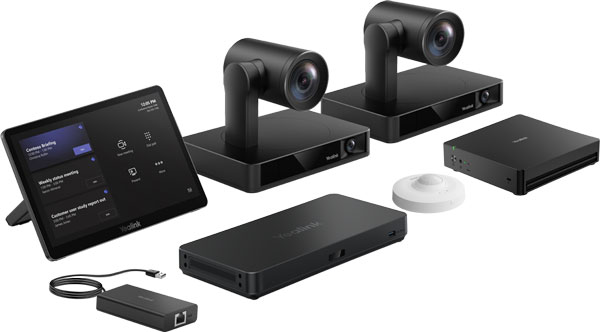
There are Microsoft Teams Rooms on Windows kits that are all-in-one bundles for rooms ranging in size from huddle rooms to extra-large rooms, including multi-camera, multi-microphone systems used in training rooms. Yealink MVC S90-C5U (linked below) is a great example of one of these simple, streamlined methods of establishing a professional MTR on Windows system in an extra-large room.
This leads us nicely to our next point: large rooms.
Large Rooms
Microsoft Teams Rooms on Windows systems are better equipped to handle large meeting rooms and training rooms.
Because they’re more modular, you can more easily add extra devices to a Windows system like A/V switches, expansion microphones, additional video conferencing cameras, and more.
As room size increases, technological requirements increase. While there are video bars for large rooms like Poly Studio X72, these all-in-one solutions have a limit beyond which they’re no longer viable options for a professional video conferencing ecosystem.
Enter Windows-based systems that can handle more cameras, microphones, speakers, displays, and more.
If you’re setting up a Microsoft Teams video conferencing system in a large room, look for Microsoft Teams Rooms on Windows Certified devices as the core of your system.
Company Policies
This point is specific to each business, but it bears mentioning. Some businesses have explicit policies against using Android as the primary operating system for core communications.
Perhaps that’s because of perceived security risks. Perhaps that’s because of platform unification; they want everything to be on Windows to make system management simpler. Perhaps that’s because Windows is stabler as an operating system than Android over the long term.
Whatever the reason, if company policies don’t allow for it, make sure to get Microsoft Teams Rooms on Windows solutions.