

Updated by Jay Brant on March 2, 2026
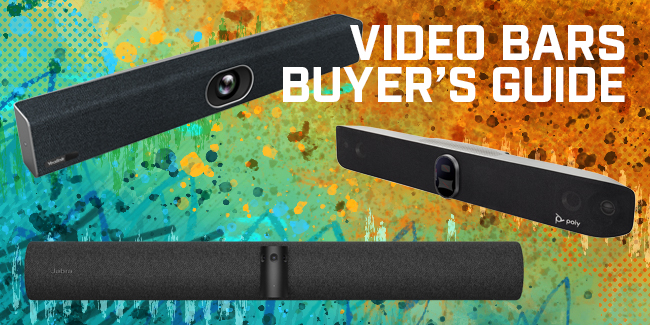
Video Bars combine camera, microphone, and speaker in one Video Conferencing device. Many are also codecs, running the meeting room software on device. By combining the core professional video call components, video bars simplify your life and help reduce costs.
That’s why business video bars are one of the quickest growing sections of the video conferencing market. In this Video Bars Buyer’s Guide, we cover everything you need to know when shopping for a video bar. We sell professional video bars from the leading manufacturers:
Table of Contents
- What Is a Video Bar?
- Video Bar Cameras
- Video Bar Microphones
- Video Bar Speakers
- Video Bars as Video Conferencing Codecs
- Video Bar Compatibility
- USB Video Bars
- SIP Video Bars, H.323 Video Bars
- Microsoft Teams Video Bars
- Zoom Video Bars
- Multi-Platform Video Bars
- Video Bar Kits
- Video Bar Connectivity
- How Do You Mount a Video Bar?
- Personal Video Bars
- 4 Benefits of Video Bars
What Is a Video Bar?
Video bars combine several familiar communications devices. Picture the sound bar you use with your TV at home. Now picture that sound bar with a built-in camera and microphone: that’s a video bar. Or you can picture a video conferencing camera with a speaker and microphone inside. Or a computer with professional audio/video components built in.
A video bar always integrates three devices:
Many video bars are also video conferencing codecs, which lets you run the video meeting software on the video bar. They can also support extended collaboration features like digital whiteboarding. We also touch on how to operate video bars: via a connected computer or using a touch console.
Let’s take each of these in turn.
If you’re looking for advice on whether you should choose a video bar or a multi-device video conferencing system, check out our blog: When to Use a Video Bar vs When to Use a Modular Video Conferencing System.
For an in-depth introduction to video conferencing, check out our Video Conferencing Buyer’s Guide.
Video Bar Cameras
Business communication requires professional tools. Video calls require Conference Room Cameras to make you and your team look your best.
When shopping for a video bar, you’ll see models with one or more integrated cameras:
- Single-camera video bars are used in huddle rooms, focus rooms, and small conference rooms. They have wide-angle lenses, so the camera’s field of view covers the entire meeting space. Personal video bars are single-camera video bars with a narrower field of view, because they only need to focus on one person’s face.
- Multi-camera video bars. are used in medium to large conference rooms. Typically, they have one wide-angle lens for group coverage and one or more narrower-angle lens for picking out individual faces. Some use one primary camera with secondary cameras to improve the performance of automatic speaker tracking and similar technologies.
The performance of both types of video bar cameras may be improved by a wide range of automatic technologies, video enhancements, and more. Many video bars now integrate AI to improve performance that much more. We cover these features in detail below.
Room Size
Room size is the most important factor when comparing video bar cameras. For focus rooms, huddle rooms, and small meeting rooms, look for a one-camera video bar with a wide-angle lens whose field of view covers people sitting towards the sides. For medium to large conference rooms, look for a multi-camera video bar with a wide-angle lens for group coverage and a camera or two for facial detail.
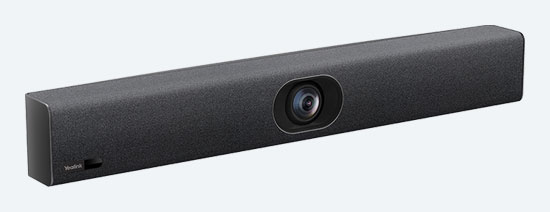
Yealink UVC40 E2 is an intelligent USB video bar for huddle rooms and small rooms with a 120° super wide-angle lens and AI-enhanced Auto Framing and Speaker Tracking.
Video-Enhancing Technologies
Conference room camera performance has greatly improved over recent years. Much of this is down to improvements in camera sensors and lenses. Equally important are video-enhancing technologies.
HDR (High Dynamic Range) is an important one. Let’s use Jabra’s Vivid HDR that you get with the Jabra PanaCast 50 as an example. “Dynamic range” refers to spectrum of colors from dark to light that the camera is capable of reproducing. HDR technology works by dynamically combining different exposures to compensate for dark or light sections of the picture. In other words, HDR means you see more detail in areas that previously would have been lost in shadow or completely blown out.
Similar to HDR is backlight compensation. This technology means that the camera sets the light levels to people, not, for example, to the bright windows behind them. This way, the people will always be seen and not hidden in shadows.
Automatic white balance adjusts color tone so people’s skin tones look more natural. If you think of how awful fluorescent lights can make people look, you’ll realize how important a technology like Yealink’s AI face enhancement is.

Jabra PanaCast 50 stitches together in real time the three video streams from its three cameras to provide Panoramic 4K video — ultra-ultra-wide angle.
Video Resolution
Video resolution is as big a consideration when shopping for a video as it when shopping for a TV to watch the Super Bowl on. Nowadays, thats seem to boil down to one decision: 4K or no 4K? 4K Ultra HD means the image includes 4x the number of pixels as 1080p Full HD or 9x the number of pixels as 720p HD for an equivalent image size:
- 720p HD. 1280 x 720 px (1 MP)
- 1080p Full HD. 1920 x 1080 px (2 MP)
- 4K Ultra HD. 3840 x 2160 px (8 MP)
What does “4K Ultra HD” stand for?
When talking about video taken in 16:9 ratio, 4K Ultra HD refers to 3840 x 2160 px resolution. “4K” comes from 3840 being basically 4000. “Ultra HD” or “UHD” is just a marketing term. 720p was labeled “HD” so the next step up, 1080p, became “Full HD.” What’s better than “Full”? Ultra.
Side note: You’ll occasionally see 1080p referred to as “2K” because 1920 is basically 2000.
Increased resolution means finer detail for a given image size. It also means larger file sizes or bandwidth load. We’re not aware of any platform that supports native 4K video conferencing (i.e., 4K without using AI upscaling). So do you really need a 4K Ultra HD video bar? Why would you want it?
There are a few reasons you might buy a 4K video bar:
- Future-proofing. Getting a video bar that supports 4K Ultra HD resolution today means that, as business technology progresses as it always does, your video bar will continue to provide first-class performance.
- ePTZ. “ePTZ” stands for “Electronic Pan-Tilt-Zoom.” A traditional PTZ camera physically pans, tilts, and zooms. With ePTZ cameras, the camera focuses in on specific areas by enlarging the picture: essentially, it crops the image. Cropped images can have distracting amounts of pixelation, so having an initial resolution greater than what you’re using for your video call means the camera can electronically zoom in on areas without losing as much, or in some cases any, detail.
- Premium features. Let’s face it: when it comes to technology, some people just want the best specs. 4K Ultra HD is currently the highest-end spec for video bar camera resolution.
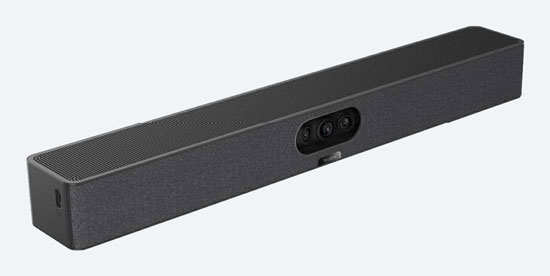
Yealink MeetingBar A25 is a triple-camera video bar for huddle rooms. It works with Microsoft Teams and Zoom natively and works across services in BYOD Mode.
Automatic Speaker Tracking & More
Video conferencing is the most natural form of distance communication available today. To make it feel even more natural, companies have developed a range of technologies that replicate the experience of having a movie director guiding the flow of the video call:
- Automatic speaker tracking. The camera zooms in on the active speaker and frames them centrally, helping the far end see their face and expressions better. Speaker tracking works by using a beamforming microphone array to pinpoint the active speaker. The camera then intelligently interprets the shape of a human and frames that shape effectively.
- Automatic group framing. The camera frames everyone in the group to eliminate wasted space on the edges, thus making the picture look more professional and everyone look as large as possible, helping the far end see expressions and body movements better. Group framing works by the camera intelligently interpreting the shapes of humans and framing these shapes effectively.
- Automatic presenter tracking. The camera follows an active speaker who is moving. Presenter tracking is a dynamic version of automatic speaker tracking. It allows for speakers to move naturally in the physical space of a meeting room or classroom while still being effectively framed.
- Video Fence. This technology does not have a general name yet. Video Fence is Yealink’s name for it; Jabra calls it Intelligent Meeting Space. The camera uses intelligent depth perception to set limits to the detection range it uses for other automatic technologies. Video Fence is useful in spaces with glass walls or reflective surfaces, so, for example, people walking in the hallway behind the meeting room will not be picked up by the camera as meeting participants and used for automatic group framing.
Companies are improving these automatic technologies all the time. For example, they are increasingly using AI to improve accuracy. They also are emphasizing more subtle cuts and fades, which make, for example, the shift from active speaker view to group view as invisible as a well-timed cut in a movie.
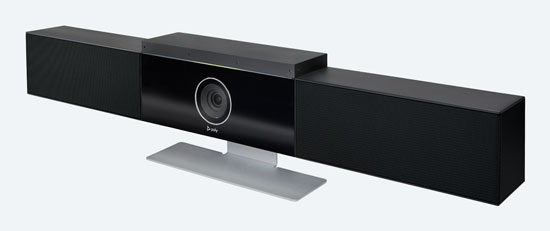
Poly Studio is a plug-and-play USB video bar with a 6-element beamforming microphone array for 12-foot pickup range, perfect for small rooms. It supports Poly’s Acoustic Fence, NoiseBlockAI, and Acoustic Clarity audio enhancing technologies.
Video Bar Microphones
Video bars include microphone arrays for picking up voices. This is convenient, because you won’t need to worry about conference phones, speakerphones, or other external devices.
Many video bars use beamforming microphone arrays. Essentially, this means that the device uses multiple microphones to pinpoint where a voice is coming from: it forms a “beam” to lock in on the voice. It then brings that voice forward in the mix. This both improves microphone reach and reduces how much environmental noise is transmitted.
The most important feature you should be looking for when considering a video bar’s microphone is distance or reach. How far away can people be while still being picked up clearly? How much reach you need is determined by how big the conference room is. In a huddle room, you don’t need much reach. in a large conference room, however, you need much more reach.
Video Bar Expansion Microphones
Even the best video bar can’t cover the whole room sometimes. If you think that’ll be the case, check if the video bar supports expansion microphones, like Poly Studio X72. You lose the all-in-one convenience, but the experience will be that much better.
Note that expansion microphones don’t come with the video bar: you have to buy them separately.
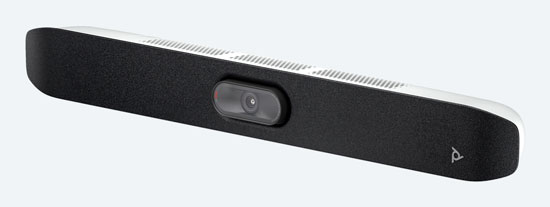
Poly Studio X32 is a powerful video bar for small rooms with advanced DirectorAI and NoiseBlockAI technologies on top of a 20 MP sensor and 4-element microphone array.
Noise Reduction Technologies
Because a video bar is placed farther away from the group than a microphone, conference phone, or speakerphone typically is, manufacturers have developed advanced noise reduction. You should check out what noise reduction a video bar provides if you know you’ll be using it in a noisier environment.
Take Poly as an example. They offer several noise reduction technologies that typify the innovations that allow a video bar to produce professional audio quality.
Acoustic Fence uses the video bar’s microphones to sense how far away sounds are coming from. It then eliminates unwanted sound from beyond a certain distance. In other words, it creates a virtual “fence” around your conversation. Acoustic Fence is particularly useful in noisier environments like open offices or conference rooms next to hallways or cafeterias.
NoiseBlockAI dynamically mutes and unmutes the video bar’s microphones based on whether people on your end are speaking. By muting the microphone, it eliminates any distracting sounds from being transmitted, like the rustling of papers or the crinkling of a snack bag.
These are just two of the types of noise reduction you should pay attention to when shopping for a video bar.

Poly Studio X52, shown here with the grille on and off, uses its high performance stereo speakers and smart audio filtering for exceptional sound quality, plus it supports 4K Ultra HD video.
Video Bar Speakers
Video bars include speakers, often a stereo speaker array. Because a video bar’s primary use-case is voice communication, audio quality isn’t as important as it is for your hi-fi system at home, but you still want voices to sound as natural as possible.
For video conferencing, excellent audio quality is a desirable feature. Improving sound quality has been shown to improve comprehension, which is, obviously, a big plus. This is why we recommend video bars with a minimum of wideband audio (often called HD audio).
Companies are improving video speakers in innovative ways. For example, Poly Studio X72 has an acoustic chamber design that makes sound more immersive and space-filling.
Video Bars as Video Conferencing Codecs
A number of video bars, like Poly Studio X72, are also video conferencing codecs. In this context, a codec is essentially a dedicated computer for running video conferencing software.
Having a video bar with codec simplifies the meeting process when you’re not using it as a USB peripheral (which we cover in just a second). The video bar will natively run, for example, the Microsoft Teams Rooms app, so you don’t need to bring in a laptop. Of course, different video bars support different video conferencing apps, so you’ll need to check on compatibility.
How Do You Operate a Video Bar?
There are two primary ways to operate a video bar: via a connected computer and via a touch console. A connected computer would usually be a laptop that plugs directly into a video bar via a USB cable. In this case, the meeting room software is running on the computer, and you manage the meeting like you would any other video conference.
Touch consoles for video bars are dedicated tablets that are either connected directly to a video bar or connected to a mini-PC (or device hub). They are tablets with stands that provide a dedicated, touch-based control center for the meeting room. For more on touch consoles, check out our blog: What Is a Touch Console for Video Conferencing?
Video Bar Compatibility & Video Bar Connectivity
We’re going to talk now about considerations that go beyond the core video conferencing technologies. As with all technology, the first thing to think about is compatibility.
- USB Video Bars
- SIP Video Bars, H.323 Video Bars
- Microsoft Teams Video Bars
- Zoom Video Bars
- Multi-Platform Video Bars
- Video Bar Kits
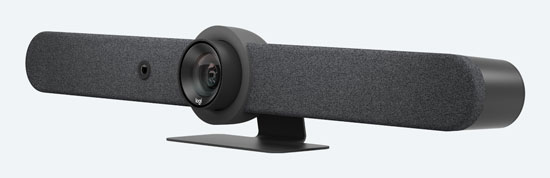
Logitech Rally Bar is a plug-and-play USB video bar that delivers exceptional performance in medium rooms with RightSight, RightLight and RightSound technologies. And it comes with a convenient remote control.
USB Video Bars
USB video bars like Poly Studio V52 are the simplest to use. So long as your video conferencing platform supports USB audio/video peripherals, it should work. The experience is the same as using a headset, webcam, or other USB device: plug-and-play. You may have to select it under your computer’s or video conferencing service’s audio/video settings. You may find, however, that not every possible feature that the video bar supports is supported by the platform.
Some video conferencing platforms have certification programs to ensure compatibility. We get into two of the most popular of these, Microsoft Teams and Zoom, in just a second.

Poly Studio X72 is an elite video bar that supports SIP and H.323. It takes 4K Ultra HD video using two cameras with 20 MP sensors each.
SIP Video Bars, H.323 Video Bars
SIP and H.323 are the most common open protocols for video communications. Most premise-based and cloud-based video conferencing systems use one of these protocols.
There are video bars that support SIP and H.323, rather than being a pure USB peripheral. By supporting these protocols, it means that you can use the video bar with SIP- or H.323-based systems. You’re not locked into one brand’s ecosystem. It also means that you can achieve a professional standard of video communications with the video bar without needing to alter your current setup.
For more on SIP and H.323, check out our Video Conferencing Buyer’s Guide.
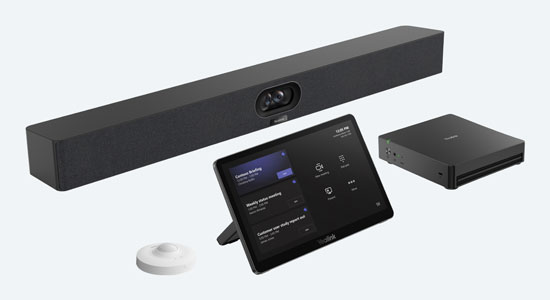
Yealink MVC S40-C5U is a Microsoft Teams Rooms on Windows kit for small rooms with SmartVision 40 video bar, MTouch Plus touch console, and MCore 4 mini-PC.
Microsoft Teams Video Bars
Microsoft Teams is perhaps the most popular business video conferencing platform today. Microsoft has a certification program that ensures that the video bar will be automatically identified by the app. It also ensures a high level of audio/video performance, support for call control features, and more.
There are many Microsoft Teams Certified video bars like Yealink MeetingBar A25, as well as Microsoft Teams Rooms video conferencing kits like Yealink MVC S40.
We recommend you go with a Microsoft Teams video bar if your business uses Microsoft 365 services exclusively. However, if your business has a hybrid environment with multiple platforms, it’s worth it to go with a USB video bar that works across a variety of services.
For an in-depth guide to Microsoft Teams video conferencing, check out our clear, detailed Microsoft Teams Rooms Video Conferencing Equipment Buyer’s Guide.
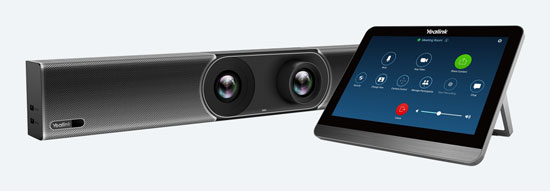
Yealink MeetingBar A30 for Zoom Rooms is a premium, dual camera, Zoom Certified video bar. Designed for medium rooms, its OS is based on Android 9.0 and it’s powered by a Qualcomm Snapdragon 845 chipset. This kit includes a touch console for simple, intuitive control.
Zoom Video Bars
Zoom is so popular now that the word has become a generic term for video conferencing: “Let’s Zoom this afternoon.” Zoom Rooms is great from personal to large room video conferencing. Their certification process guarantees a high level of audio/video performance and full interoperability.
There are quite a few Zoom Certified video bars out there. Poly Studio X30 for Zoom Rooms, for example, is a huddle room video bar that gives your team a plug-and-play solution for Zoom video conferencing.
Multi-platform video bars
Some videos bars let you select the platform you can use the video bar with. For an example of this, check out our blog: How to Switch Between Service Providers on Yealink MeetingBar A20 and A30.
Other videos bars can be put in a mode that lets you use them as a USB peripheral, even if they weren’t originally intended for this purpose. For an example of this, check out our blog: What Is Poly Device Mode?
Video Bar Kits
While you can use many video bars without needing to buy any other equipment, sometimes you need extra microphone coverage or want a touch controller to manage the video calls. If this is the case, look for a video bar kit.
In particular, Logitech, Poly, and Yealink offer video conferencing kits that provide everything you need to get going. There are options to cover all sizes of conference room, from huddle rooms to extra-large board rooms. Additionally, there are Microsoft Teams Certified video bar kits and Zoom Certified video bar kits that seamlessly integrate with those popular platforms.
(Note that many of these video conferencing bundles don’t actually come with a video bar; they come with other video conferencing equipment.)
Video Bar Connectivity
We’ve just discussed platform compatibility. Now let’s cover physical compatibility, the ports and protocols that allow you to use your video bar how you want. USB video bars, unfortunately, are subject to USB-A/USB-C confusions: you might need an adapter. Beyond USB, there are a few other connectors you might want to check out.
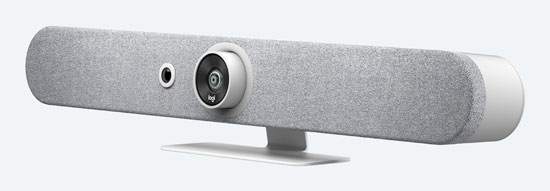
Logitech Rally Bar Mini may be compact but it has dual HDMI ports and supports two displays. Logitech’s RightLight technology means the video is cinema quality.
HDMI
Some video bars have HDMI ports for connecting directly to displays, rather than connecting via USB. Some video bars have dual HDMI ports for dual display conferencing: people and content. Dual display mode gives your video call an extra level of engagement and can improve collaboration.
Bluetooth
Many video bars support wireless Bluetooth connectivity. Bluetooth allows you to connect a smartphone or tablet to the video bar, particularly useful for sharing content. Yealink MeetingEye video bars, for example, let you share content wirelessly via Apple Airplay or Miracast using Bluetooth. Some video bars also support Bluetooth remote controls.
Wi-Fi
Wi-Fi is so convenient you’ll probably be interested in a Wi-Fi video bar. And indeed some video bars support Wi-Fi. But there’s a big caveat: Wi-Fi is typically used for managing the video bar, not for video conferencing itself. Always doublecheck that when a manufacturer says, “This video bar supports Wi-Fi!” they mean what you want them to mean.

Poly Studio X72 comes with a wall mount. Mount it above or below a display using an optional VESA mounting kit or position it on a table using an optional table stand.
How do you mount a video bar?
An important consideration when shopping for a video bar is: Can you mount it where you want to? There are three basic mounting options for video bars: wall mount, display mount, and table stand. Not every video bar supports all three. When mounting a video bar on a display, you might have a clamp or other built-in thing to hold it stably on top of the display. You might, however, need to use a mounting bracket.
Display mounting brackets typically align with standard VESA patterns. Most displays have VESA mounting patterns on the back, but you’ll want to make sure the display mount fits the back of your display. These mounts will probably allow you to mount the video bar either above or below the display.
If you intend to mount the video bar under a display or on a ceiling, you might look into whether it supports inverted video. This means that you can mount the video bar upside down and it’ll automatically flip the video properly.
Note that you might have to purchase a separate mounting kit. It might not come included in the package. Doublecheck to make sure the video bar can be mounted how you want and whether you’ll have to purchase an additional mounting kit.

Yealink UVC34 is a 4K Ultra HD video bar for huddle rooms that doubles as a personal video bar.
Personal Video Bars
To finish up, we wanted to add one thing. We’ve been talking about video bars as if they’re only used for group video communications. There are video bars, however, starting to appear on the market that work as personal video bars like Poly Studio R30 or Yealink UVC34.
We all know how bad built-in cameras, microphones, and speakers can be on a PC or laptop. Webcams don’t have good microphones and computer speakers, well, don’t help with video at all. A personal video bar upgrades all of them at once: three birds, one stone.
All the features and considerations we’ve discussed in this buyer’s guide apply to personal video bars.
4 Benefits of Video Bars
Let’s sum up why video bars are growing and growing in popularity for business video communications. Here are 4 reasons why video bars are good for you:
- Cost savings. Because you only need the one device, video bars can save you a lot of money compared with traditional video conferencing systems.
- Simplicity. You don’t need to connect all the cameras, microphones and speakers: all-in-one. And this makes it easier for new users to pick up.
- Compatibility. Video bars make it easy to get a professional experience across platforms, including Microsoft Teams and Zoom Rooms Certified options.
- Video and audio quality. Manufacturers have made incredible strides with video-enhancing and noise-reducing technologies, giving you HD or better video and audio quality.
If you have any questions or for additional help, please contact us at 888.201.9056 or email us at service@ipphone-warehouse.com.
© 2026 IP Phone Warehouse. All rights reserved, including the right to reproduce this Video Bars Buyer’s Guide or portions thereof in any form whatsoever.